One prompt in.
A whole map out.
Start from a prompt like
- Plan a food trip to Osaka
- Launch plan for a finance app
- How vaccines train immunity
- Monolith or microservices?
What happens next
- Branches grow while AI writes
- Edit every idea by hand
- Share a read-only link
- Download PNG, PDF, outline
Open MindNest
No account. Your maps are saved in this browser, and AI is off until you turn it on.
From one prompt to a map you can keep working on
Name a map
Give it a name, and a category if you like. It starts as a single central topic.
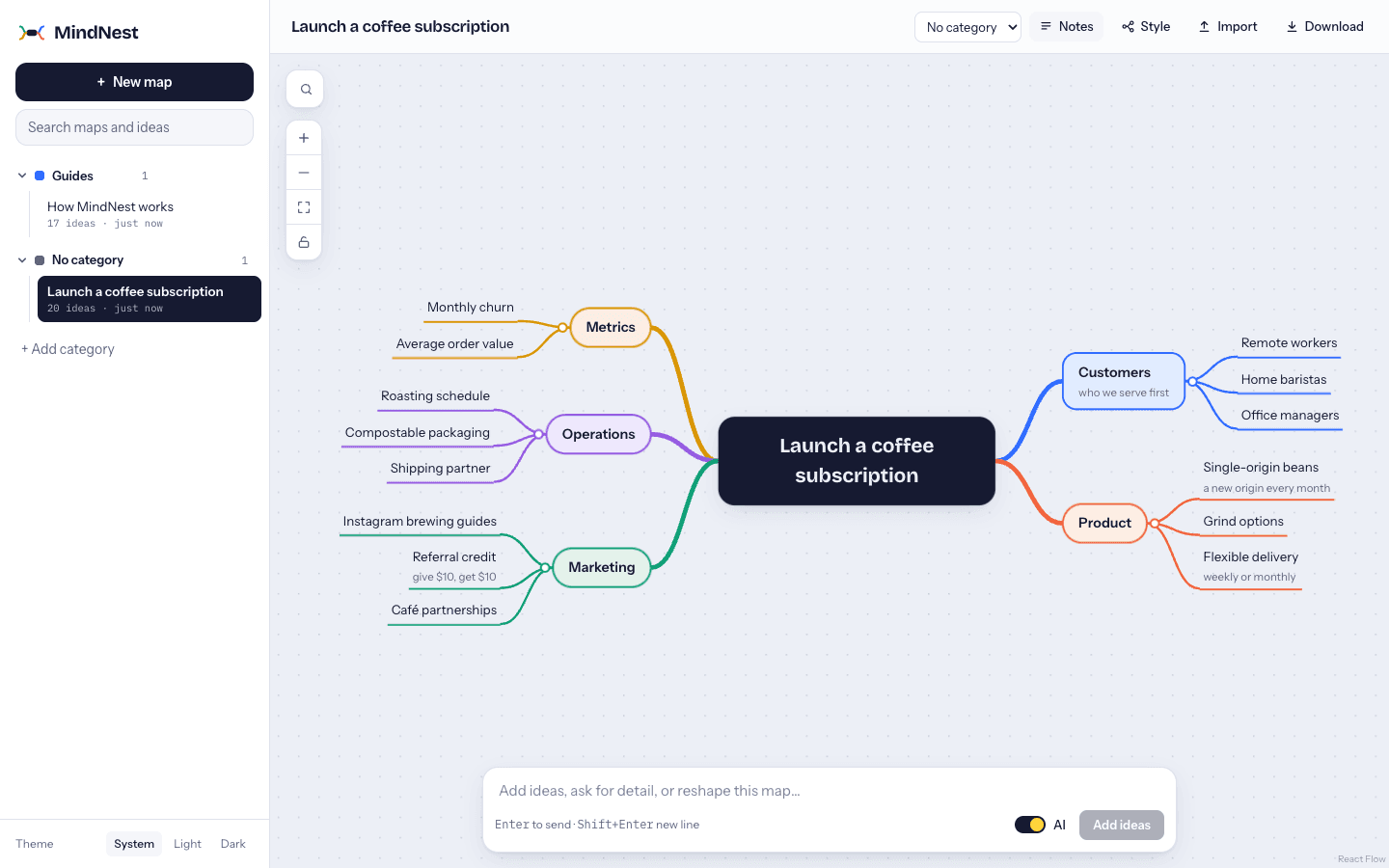
Describe what it should cover
Turn AI on and write a prompt; branches appear while it writes. With AI off, type an outline instead: one idea per line, indent to nest.
Keep growing it
Select an idea and prompt again to grow just that branch, or rename, add, move and delete ideas yourself. Ctrl/Cmd+Z takes back any step.
What’s inside
Written the way MindNest copies a map as an outline, which pastes straight back in.
# MindNest
- Four layouts — mind map, tree, org chart, timeline
- Six styles, eight palettes — each map keeps its own look
- Find in map — Ctrl/Cmd+F highlights matches and opens hidden branches
- Keyboard first — Tab adds a child, Enter a sibling, arrows move between ideas
- Share a link — read-only, and the map travels inside the link
- Download — PNG, SVG, PDF, Markdown outline or a MindNest file
- Thai and English — matching fonts, and the AI answers in your language
Start with one idea.
The welcome map inside shows every gesture. It takes a minute.